Workflow Interruptions & Stashing
Sometimes when you're coding, you get interrupted. Maybe your boss asks you to quickly fix something, or you realize you need to pull the latest changes before continuing your work. But what if you're not ready to commit your current changes yet?
This is where Git's stashing feature comes to the rescue! Think of it as a way to temporarily save your work so you can come back to it later.
Show/Hide Video
What is a Stack?
Before we learn about Git stash, let's understand what a "stack" is. A stack is like a stack of plates:
- You can only add plates to the top of the stack
- You can only remove plates from the top of the stack
- The last plate you put on is the first one you take off
This is called LIFO - "Last In, First Out."
Examples of stacks in everyday life:
- A stack of books on your desk
- A stack of papers
- Browser history (when you click "back")


Git stash works the same way - when you save (stash) your work, it goes on top of the stack. When you want your work back, you get the most recent one first.
What is Git Stash?
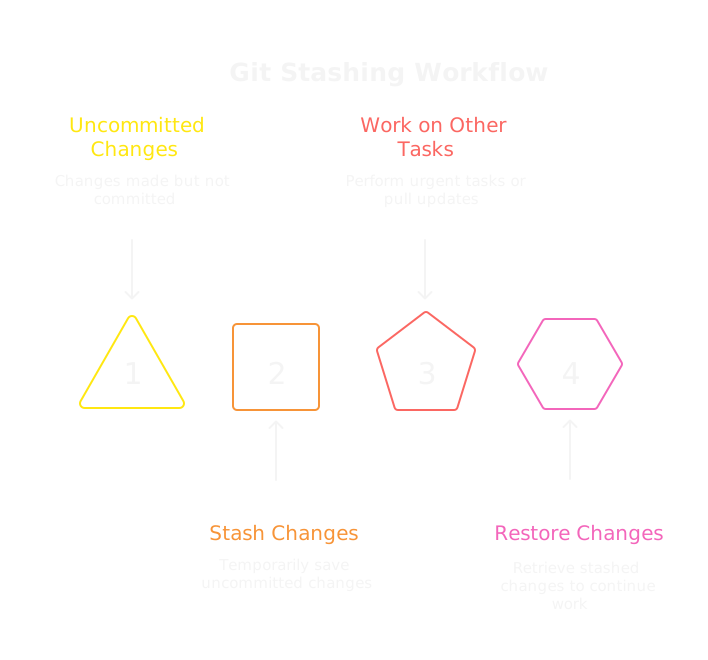
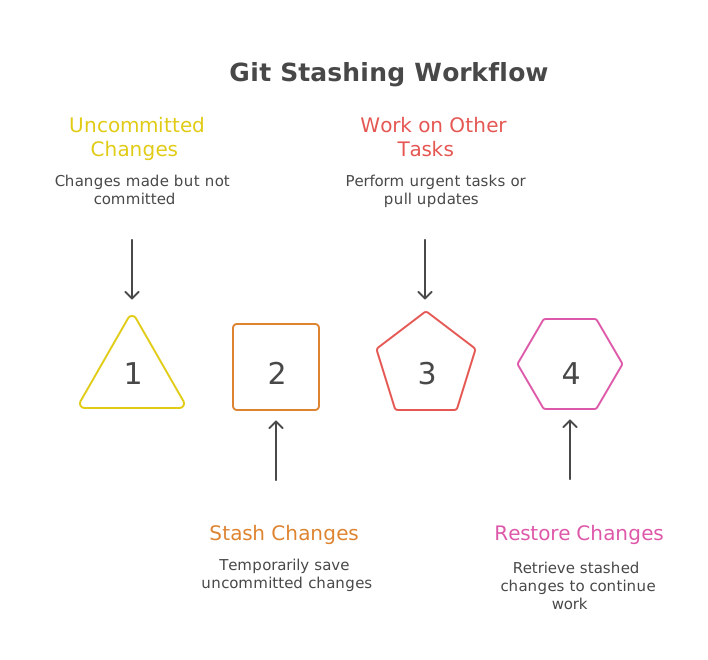
Git stash is like a temporary save button for your uncommitted changes. When you stash your work:
- Git saves all your current changes
- Your files go back to how they were at your last commit
- You can work on something else
- Later, you can restore your saved changes and continue where you left off
Think of it like putting your homework in a folder, working on a different assignment, then taking your homework back out of the folder.
Basic Stashing Commands
Show/Hide Video
Saving Your Work - Git Stash Push
To save your current work temporarily:
git stash push -m "Working on navigation menu"
Or just:
git stash
This saves your changes and gives you a clean workspace.
Getting Your Work Back - Git Stash Pop
To get your most recent saved work back:
git stash pop
This puts your changes back and removes them from the stash (like taking the top plate off the stack).
Important
git stash pop removes the stash after restoring it. If something goes wrong, you can't get it back easily.
A Safer Option - Git Stash Apply
If you want to be extra careful:
git stash apply
This puts your changes back but keeps a copy in the stash (like copying the top plate instead of removing it).
When Would You Use Stashing?
Here are some common situations where stashing is helpful:
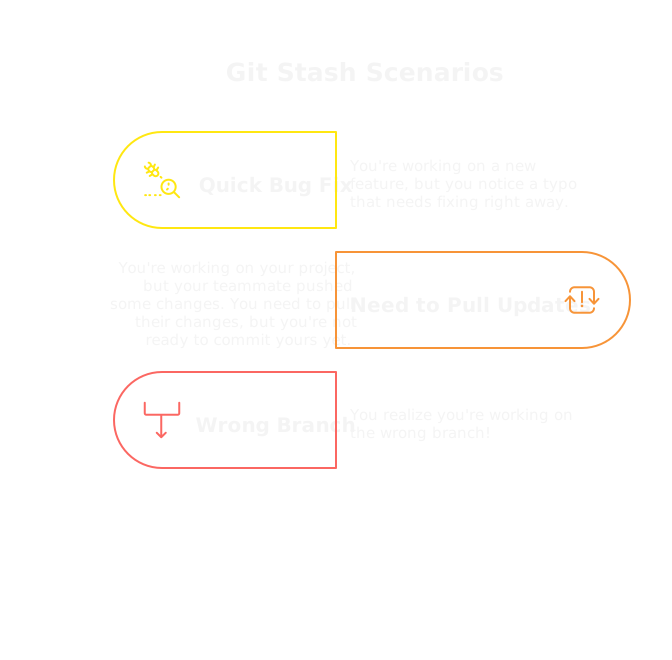
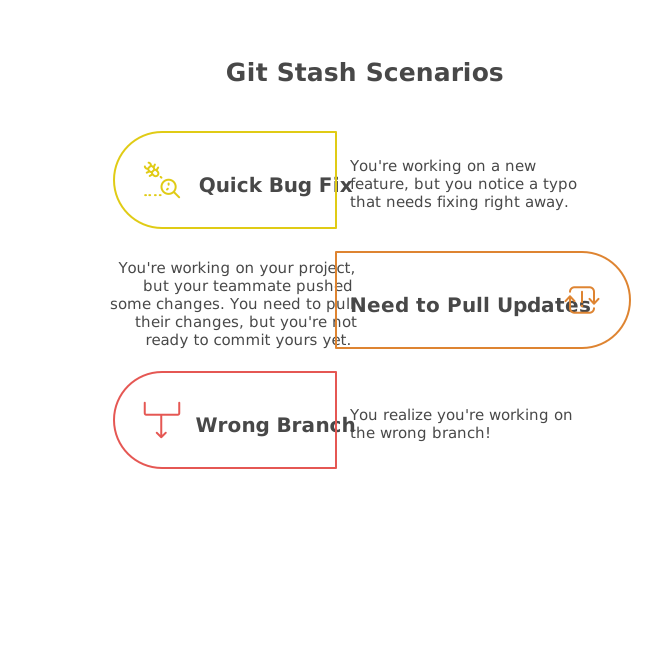
Scenario 1: Quick Bug Fix
You're working on a new feature, but you notice a typo that needs fixing right away.
Show/Hide Video
git stash push -m "New feature work"
# Fix the typo, commit it
git stash pop
# Continue with your feature
Scenario 2: Need to Pull Updates
Show/Hide Video
You're working on your project, but your teammate pushed some changes. You need to pull their changes, but you're not ready to commit yours yet.
git stash push -m "Half-finished feature"
git pull
git stash pop
Scenario 3: Wrong Branch
Show/Hide Video
You realize you're working on the wrong branch!
git stash
git checkout dev
git stash pop
Managing Your Stashes
Show/Hide Video
Seeing What You've Stashed
To see all your stashes:
git stash list
This might show something like:
stash@{0}: On main: Working on navigation menu
stash@{1}: On main: Half-finished login form
Looking at Stash Contents
To see what changes are in your most recent stash:
git stash show
Cleaning Up Old Stashes
To delete a specific stash:
git stash drop stash@{1}
To delete all stashes:
git stash clear
Exercise 1
Show/Hide Video
For this exercise, you will practice the basic stashing workflow with a simple HTML project.
Instructions
- Create a new project folder and set it up:
mkdir stash-practice
cd stash-practice
git init
- Create a simple HTML file called
index.html:
<!DOCTYPE html>
<html>
<head>
    <title>My Project</title>
</head>
<body>
    <h1>Welcome to My Site</h1>
    <p>This is my awesome website!</p>
</body>
</html>
- Make your first commit:
git add index.html
git commit -m "Initial website"
- Start adding a new feature - add a paragraph about yourself (but DON'T commit yet):
<p>My name is [Your Name] and I'm learning Git!</p>
- Oops! You need to fix something urgent - stash your work:
git stash push -m "Adding about me section"
- Make an urgent fix - change the title to "My Awesome Project":
<title>My Awesome Project</title>
- Commit the fix:
git add index.html
git commit -m "Fix: Update page title"
- Get back to your feature work:
git stash pop
- Finish and commit your feature:
git add index.html
git commit -m "Add about me section"
Hints
How do I see what's in my stash?
Use these commands to check your stashes:
git stash list    # See all stashes
git stash show    # See what's in the most recent stash
What if I forget to add a message?
If you forget the -m flag, Git will create a generic message. It's not the end of the world, but adding messages helps you remember what you stashed!
Submission
Once you've completed the exercise, run these commands and copy the output:
git log --oneline
git stash list
Paste both outputs into the text area below.
Solution
Show the Answer
Your git log should look something like this:
a1b2c3d Add about me section
e4f5g6h Fix: Update page title
i7j8k9l Initial website
Your stash list should be empty (since you used git stash pop):
# No output means no stashes remaining
Your final HTML should look like this:
<!DOCTYPE html>
<html>
<head>
    <title>My Awesome Project</title>
</head>
<body>
    <h1>Welcome to My Site</h1>
    <p>This is my awesome website!</p>
    <p>My name is [Your Name] and I'm learning Git!</p>
</body>
</html>