Creating Local Repositories
When introducing Git, a lot of emphesis was placed on using Git as a colaboration tool, but Git is also a great tool for working on your own. In this section, we will cover how to create a local repository, then learn how to stage and commit changes.
Initializing a Repository
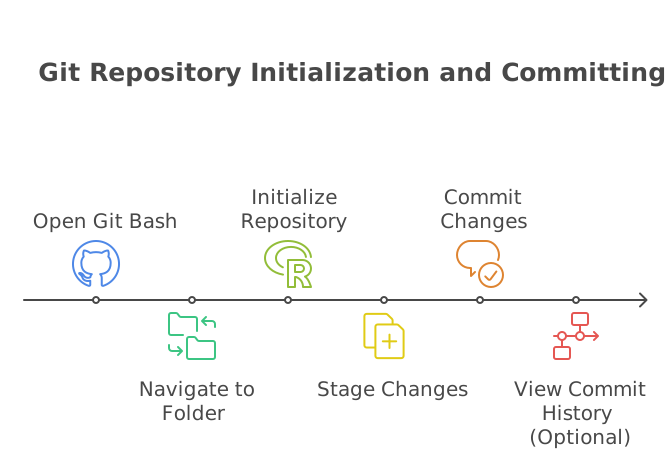
To create a local repository, open Git Bash (or a terminal) and navigate to the folder where you want to create your repository.
If you already have the folder open in Explorer (windows) or Finder (macOS), you can right-click in the folder and select "Git Bash Here" or "Open in Terminal". This is often the easiest way to open Git Bash or a terminal in the correct folder.
Once you have Git Bash or a terminal open, run the following command to create a new repository:
git init
This will create a new folder called .git in your current directory. This folder contains all of the information about your repository, including the history of changes to your code.
Note
The .git folder is hidden by default. To view it, you may need to enable the option to show hidden files in your file explorer.
Additionally, if we want to see the status of our repository, we can run the following command:
git status
This will show a different message depending on the state of your repository. If you have just initialized a repository, it will show that you have no commits yet.
This video will show you how to create a local repository in Windows 10. The process is similar for other operating systems:
Show/Hide Video
Staging and Committing Changes
Before you can commit changes to your repository, you need to stage them. This tells Git which files you want to commit.
To stage a single file, run the following command:
git add <file name>
To stage all of the files in your repository, run:
git add .
Once you have staged your changes, you can commit them to your repository.
To commit your changes, run the following command:
git commit -m "Commit message"
The -m flag is used to add a message to your commit. This message should be a short description of the changes you are committing. For example, if you added a menu to your website, your commit message might be "Added main menu".
Additionally, if you want to add an emoji to your commit message, you can use the following syntax:
git commit -m ":emoji: Commit message"
This video will show you how to commit changes in Git:
Show/Hide Video
The commit message should be a short description of the changes you are committing. For example, if you added a menu to your website, your commit message might be "Added main menu".:
git commit -m "Added main menu"
As you saw in the video, I like the idea of adding an emoji to my commit messages. This can help you quickly identify the type of change you are making. For example, you might use a 🐛 :bug: emoji for bug fixes, a ✨ :sparkles: emoji for new features, or a 🚀 :rocket: for when you deploy!
The website that I use to find emojis is gitmoji.dev . You can also hover over the emoji in your OS's emoji picker to see the name of the emoji. For example, if you hover over the 🐛 emoji, you will see that it is called "bug".
In the video we also showed git log to see the commit history. This command will show you a list of all the commits in your repository, along with the commit message, the author, and the date of the commit.
git log
Important
If you forget the -m flag when committing changes, Git will open a text editor for you to enter your commit message. By default, this will be Vim, which can be confusing for new users. If this happens to you, my recommendation (for now) is to exit out of your terminal and run the command again with the -m flag.
Exercise 3
Show/Hide Video
For this exercise, you will complete another commit on the demo1 folder that we created in the previous video.
Before starting, close your Git Bash if you currently have it open.
Open the index.html file (if you closed it), and add a new paragraph of text under your name. I won't see this, so it can be something silly 🤪 or spicy 🔥.
Tip
Use the <p> </p> tags to create a new paragraph.
Stage your changes and run the git status command to confirm that your changes are staged.
Commit your changes with the commit message. For example, "Added new paragraph of text". Optionally add an emoji to your commit message. Choose an emoji that we didn't use in the previous video. Here is the gitmoji.dev link again if you need it.
Hints
How do I stage changes?
You can stage changes using the git add command. To stage a single file, use git add <file name>. To stage all of the files in your repository, use git add ..
git add index.html
git add .
How do I commit changes?
You can commit changes using the git commit command. Use the -m flag to add a message to your commit.
git commit -m ":sparkles: Added new paragraph"
Submission
Once you have completed the exercise, copy the commands you used to complete the exercise and paste them into the text area below. Then click the "Submit Exercise" button.
Solution
Show the Answer
Add your paragraph to the index.html file, under your name. For example:
<p>New paragraph</p>
Then, open Git Bash (or a terminal) and navigate to the folder where you created your repository, and run the following commands:
git add .
git commit -m ":sparkles: Added new paragraph"