Navigating the Command Line
Before we start using Git, let's take a moment to look at some basic commands you will need to know to navigate the command line. The command line interface (CLI) is a text-based interface that allows you to interact with your computer using commands.
If you are using MacOS or Linux, use the Terminal. If you are using Windows, use the Command Prompt. If you are using Visual Studio Code, you can use the integrated terminal.
Note
If you have experience using command line tools, specifically ls/dir, cd, and mkdir, you can skip directly to Exercise 1.
Here are some basic commands you will need to know:
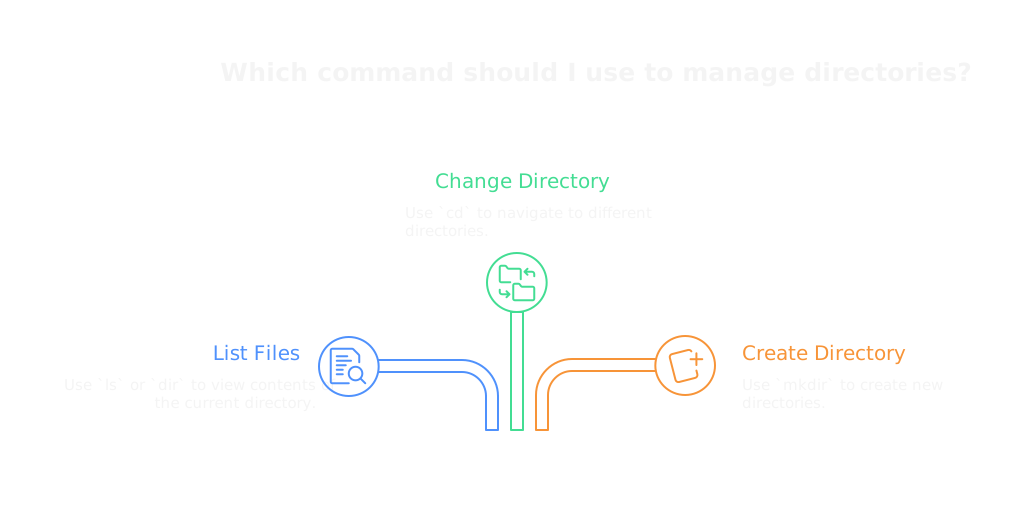
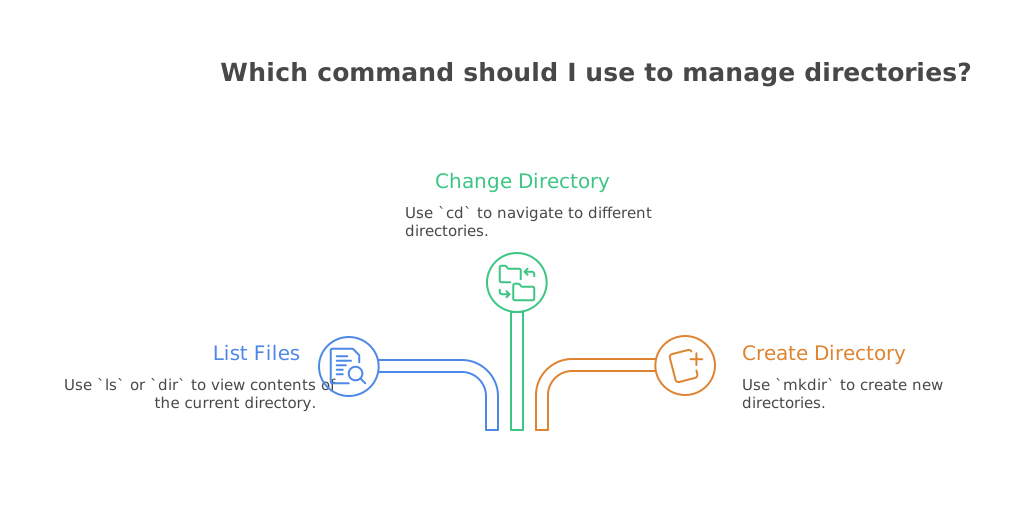
ls/dir: List the files and folders in the current directory (folder). The command prompt usesdirand the terminal usesls, but for the most part they work the same way.cd: Change directories. For example,cd MyProjectwill take you to the myProject folder, assuming it exists in the current directory. You can also usecd ..to go up to the parent directory, orcd ~to go to your home/user directory. You can also combine them with slashes to navigate to a specific directory, such ascd ~/../Joe/Desktop, which will take you to the Desktop folder for the user Joe (assuming that user exists).mkdir: Make a new directory. For example,mkdir MyProjectwill create a new folder called MyProject in the current directory.
Note
The terms "directory" and "folder" are synonymous. I will be using them interchangeably throughout this course.
In this video we will see these commands in action:
Show/Hide Video
Exercise 1
Show/Hide Video
Perform the following tasks:
Open up your terminal and navigate to your desktop.
Create a new directory called
Exercise1.Show the files and folders in the current directory, to confirm that the folder was created.
Navigate into the
Exercise1directory.
Hints
How do I create a new folder?
Use the mkdir command followed by the name of the folder that you want to create. For example, mkdir MyFolder will create a new folder called MyFolder:
mkdir MyFolder
How do I navigate into a folder?
Use the cd command followed by the name of the folder that you want to navigate into. For example, cd MyFolder will take you into the MyFolder folder:
cd MyFolder
How do I list the files and folders in the current directory?
Use the dir command on the Windows command prompt:
dir
Or, use the ls command on the terminal:
ls
Submission
Once you have completed the exercise, copy the commands you used to complete the exercise and paste them into the text area below. Then click the "Submit Exercise" button.
Solution
Note
Your instructor can see if you view the solution before submitting your answer, so please try to solve the exercise on your own first.
Show the Answer
Here are the commands you need to complete the exercise:
cd Desktop
mkdir Exercise1
ls
cd Exercise1
Note that the ls command will need to be replaced with dir if you are using the command prompt on Windows.